> For the complete documentation index, see [llms.txt](https://docs.chatalog.ai/llms.txt). Markdown versions of documentation pages are available by appending `.md` to page URLs; this page is available as [Markdown](https://docs.chatalog.ai/zh-cn/settings/team-management/agent-roster-management.md).
# 客服人员排班管理
**客服人员排班管理**功能可帮助拥有者和管理员规划客服的值班时间、设置值班/非值班时段,并自动发送非值班消息。
> ⚙️ 仅适用于 **拥有者(Owner)** 与 **管理员(Admin)** 角色。\
> 💡 此功能为 **付费增值功能**。
### 进入客服人员排班管理页面
您可以通过以下页面进入:设置 → 团队管理 → 客服人员排班管理
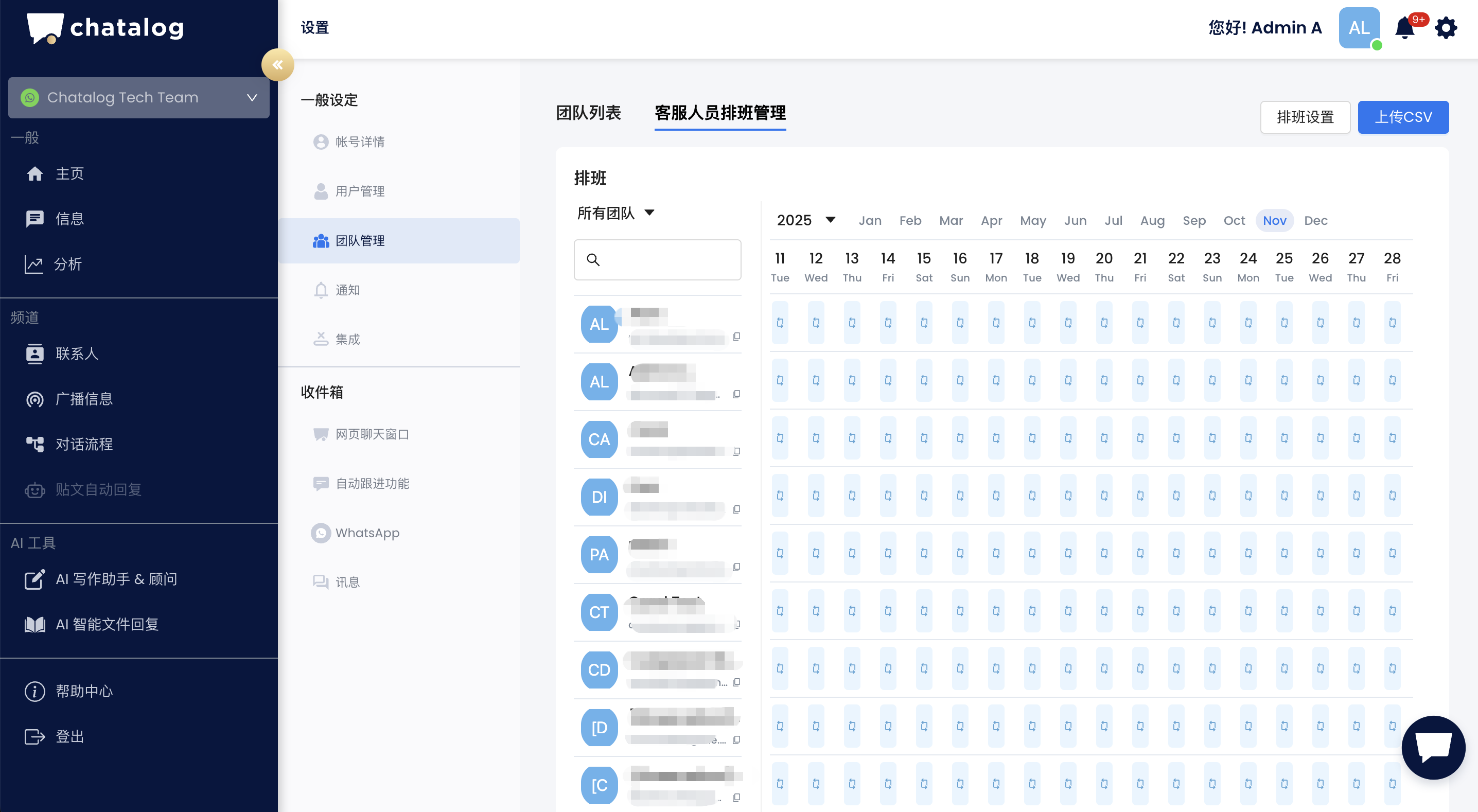 在此页面中,您可以:
* 按团队或客服名称 **搜索与筛选**;
在此页面中,您可以:
* 按团队或客服名称 **搜索与筛选**;
 * 通过切换开关 **默认状态显示**“值班”或“非值班”;
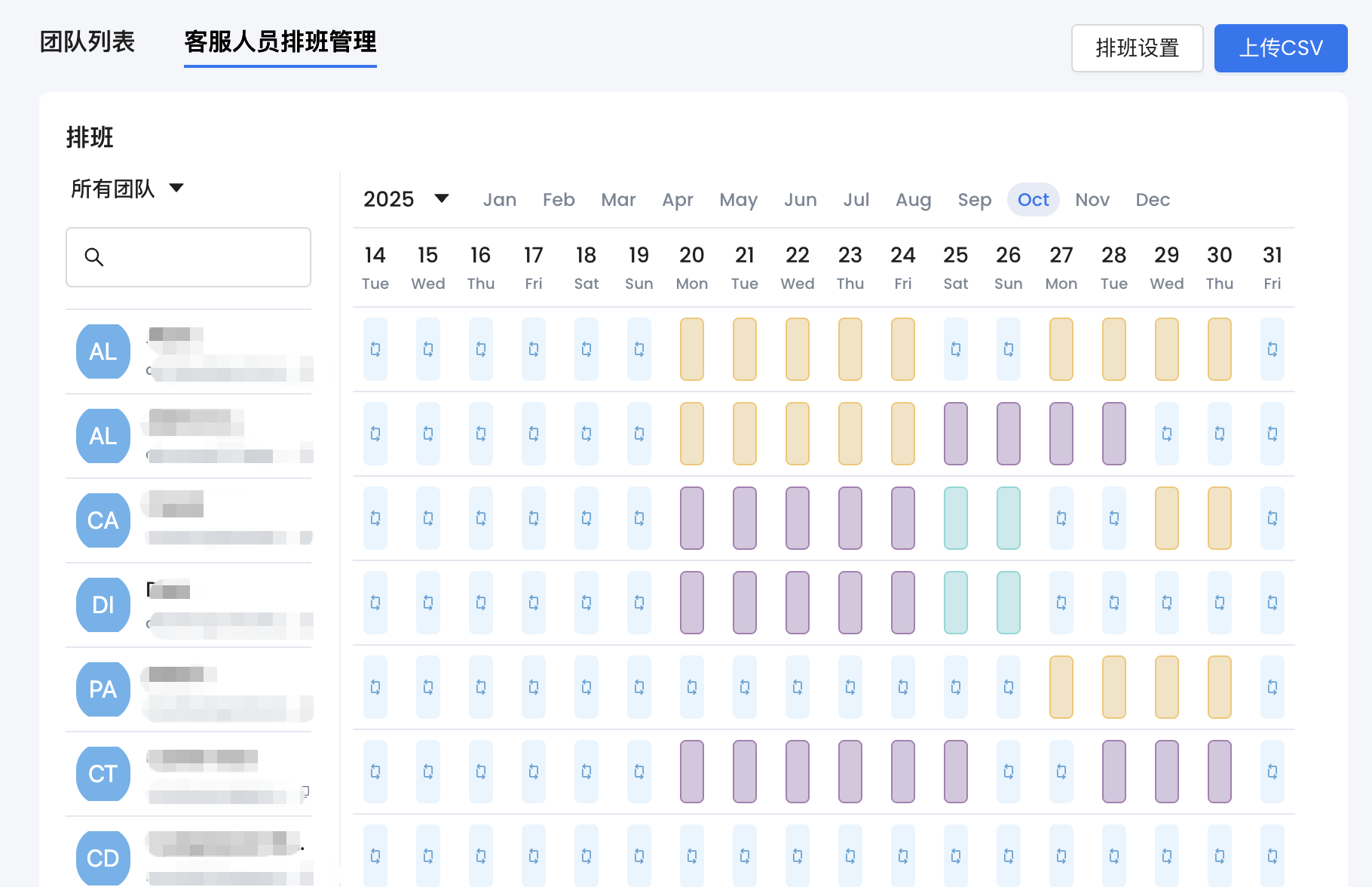
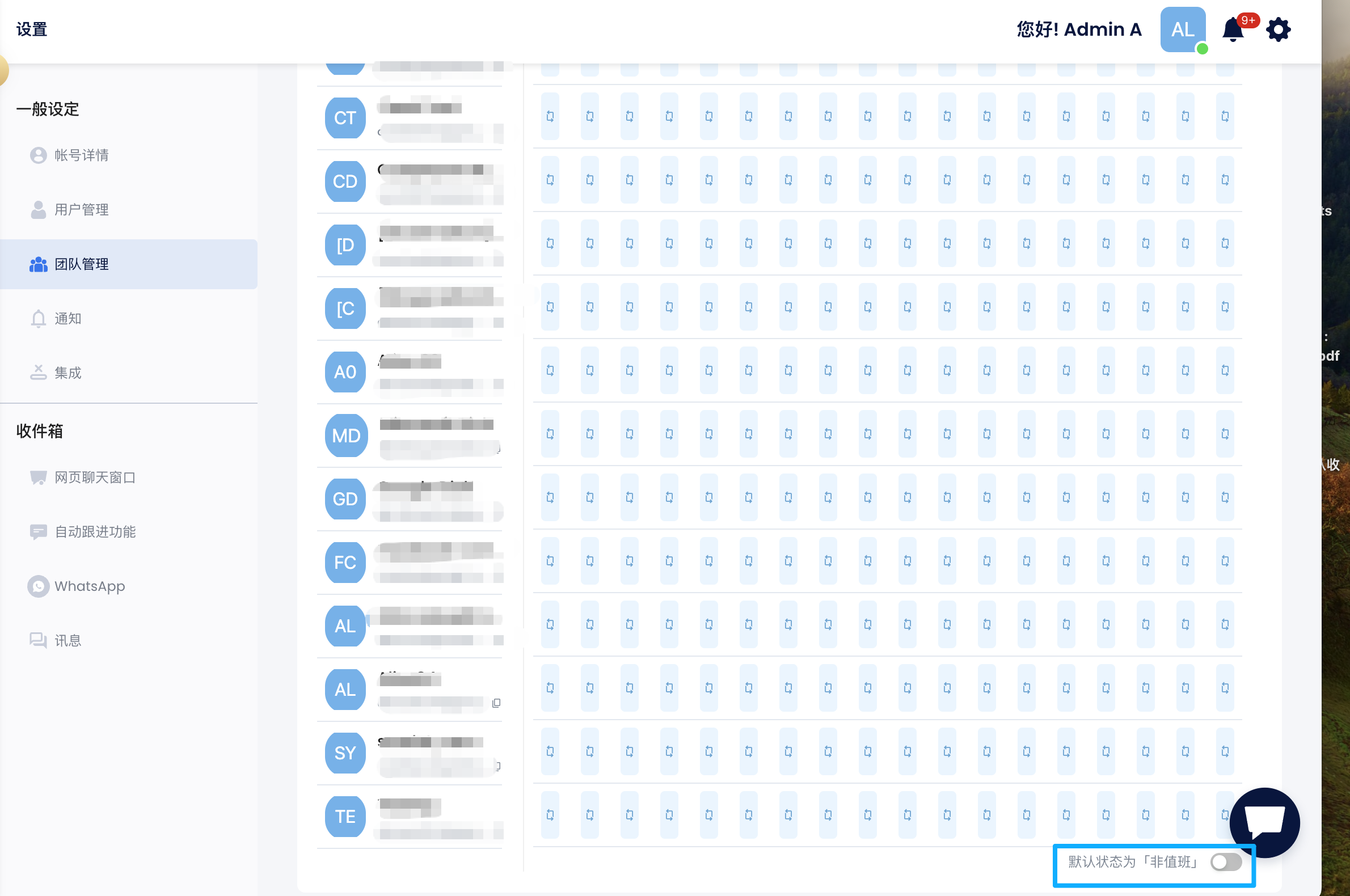 * 以日历形式 **查看已上传的名单**和客服排班状态。
### 步骤 1:自定义值班时段
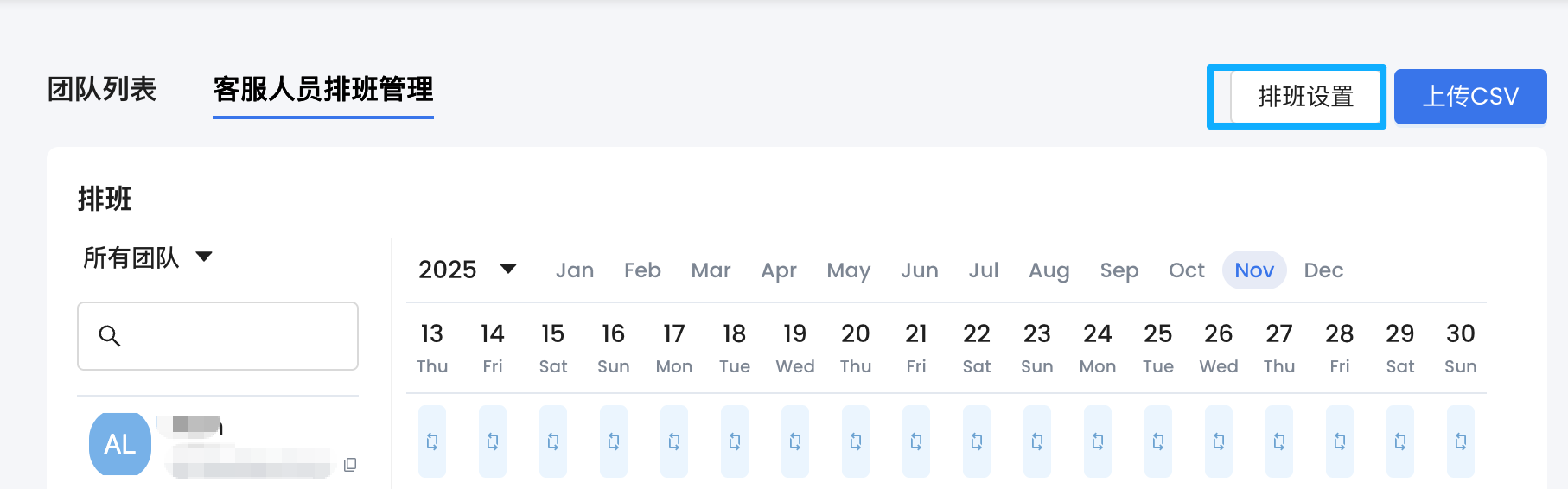
点击 **排班设置(Roster Setting)** 来定义组织的值班时段。
* 以日历形式 **查看已上传的名单**和客服排班状态。
### 步骤 1:自定义值班时段
点击 **排班设置(Roster Setting)** 来定义组织的值班时段。
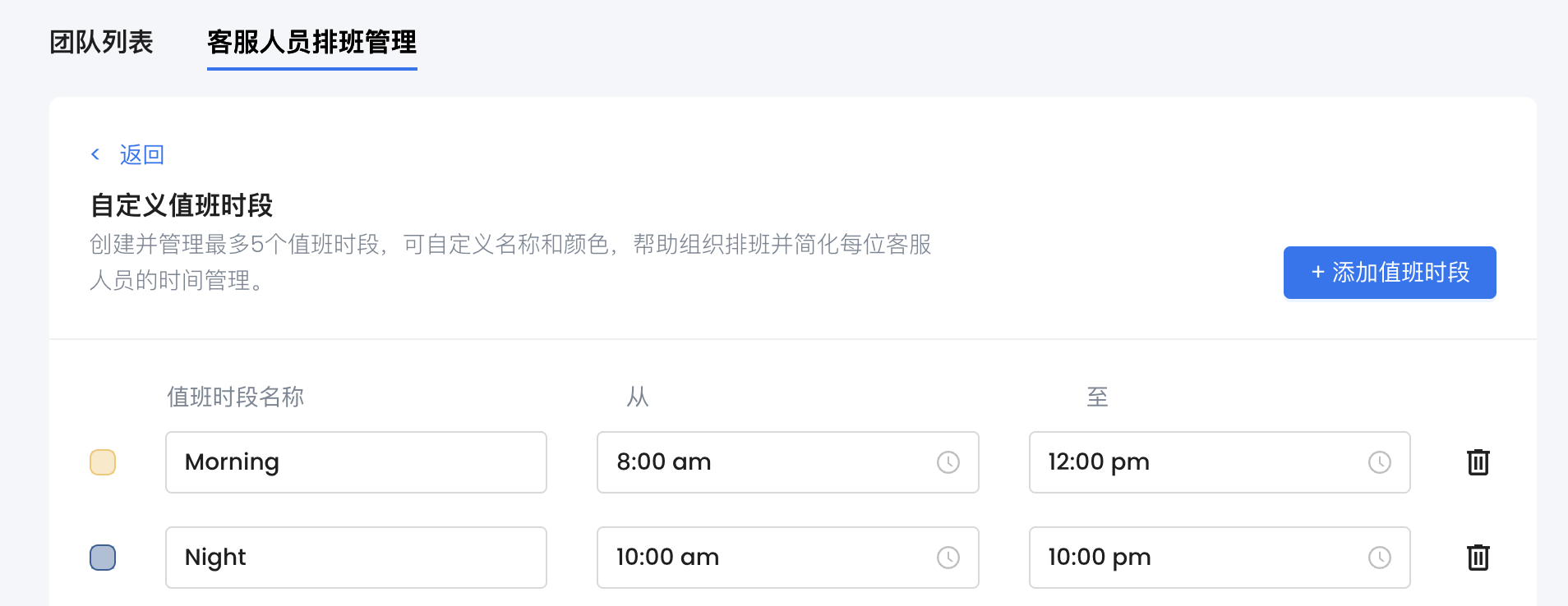 可设置内容包括:
* **时段名称:** 例如早班、午班、晚班
* **颜色:** 用于在日历中区分不同时段
* **时段范围:** 定义每个时段的开始与结束时间
* **最多可创建 5 个时段**
### 步骤 2:设置非值班时间回复
在 **排班设置** 页面中,您可以设置自动非值班回复。
可设置内容包括:
* **时段名称:** 例如早班、午班、晚班
* **颜色:** 用于在日历中区分不同时段
* **时段范围:** 定义每个时段的开始与结束时间
* **最多可创建 5 个时段**
### 步骤 2:设置非值班时间回复
在 **排班设置** 页面中,您可以设置自动非值班回复。
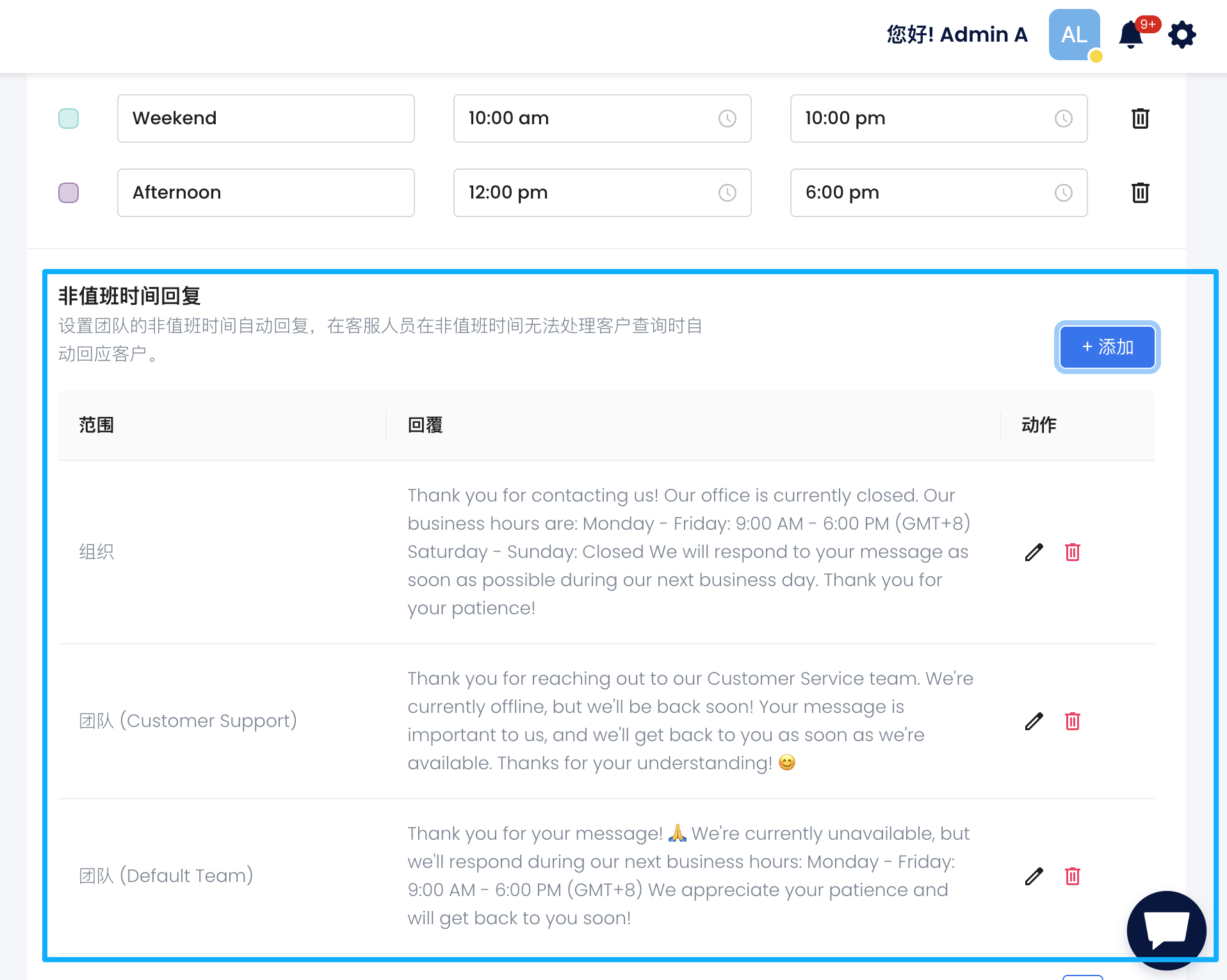 * **组织非值班时间回复:** 适用于所有团队。
* **团队非值班时间回复:** 适用于特定团队,若同时存在组织非值班回复,则团队非值班回复将覆盖。
当客户在客服非值班时段发送消息时,系统将自动回复相应的非值班消息。
### 步骤 3:上传名单
点击 **上传 CSV(Upload CSV)** 以导入团队排班表。
* 请先查看 **样本格式**,确保数据格式正确。
* **组织非值班时间回复:** 适用于所有团队。
* **团队非值班时间回复:** 适用于特定团队,若同时存在组织非值班回复,则团队非值班回复将覆盖。
当客户在客服非值班时段发送消息时,系统将自动回复相应的非值班消息。
### 步骤 3:上传名单
点击 **上传 CSV(Upload CSV)** 以导入团队排班表。
* 请先查看 **样本格式**,确保数据格式正确。
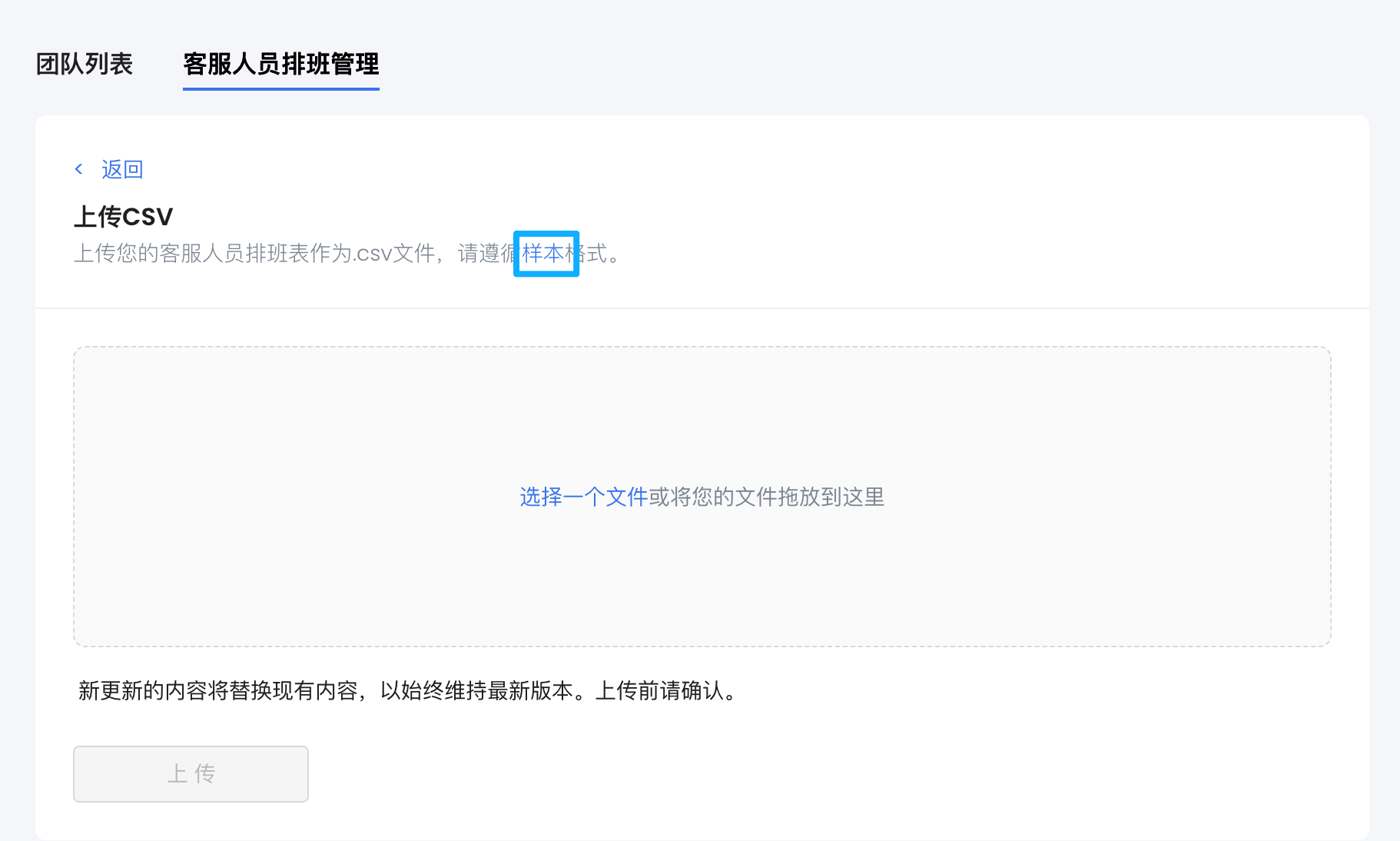 * CSV 文件需包含以下字段:
* **客服邮箱地址**
* **日期**
* **时段名称**(需与您定义的时段名称一致)
上传后,名单将显示在 **客服人员排班管理页面**。
* CSV 文件需包含以下字段:
* **客服邮箱地址**
* **日期**
* **时段名称**(需与您定义的时段名称一致)
上传后,名单将显示在 **客服人员排班管理页面**。
 > 🔄 如需修改名单,只需重新上传新的 CSV 文件,系统会自动覆盖旧数据。
### 步骤 4:分配对话与非值班提示
* 在 **信息页面** 手动分配对话时,非值班客服会被 **清晰标记**。
> 🔄 如需修改名单,只需重新上传新的 CSV 文件,系统会自动覆盖旧数据。
### 步骤 4:分配对话与非值班提示
* 在 **信息页面** 手动分配对话时,非值班客服会被 **清晰标记**。
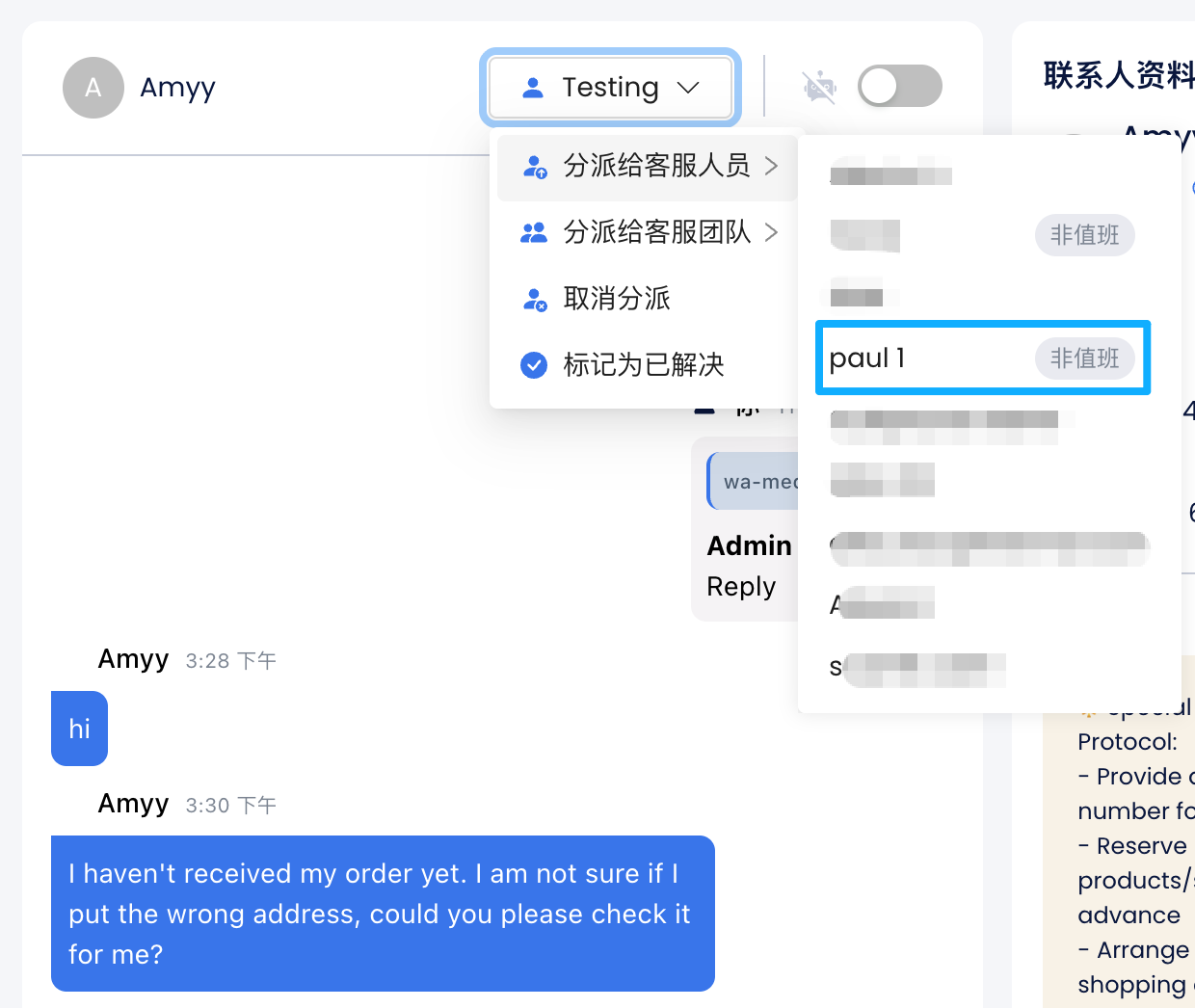 * 您仍可选择将对话分配给非值班客服。
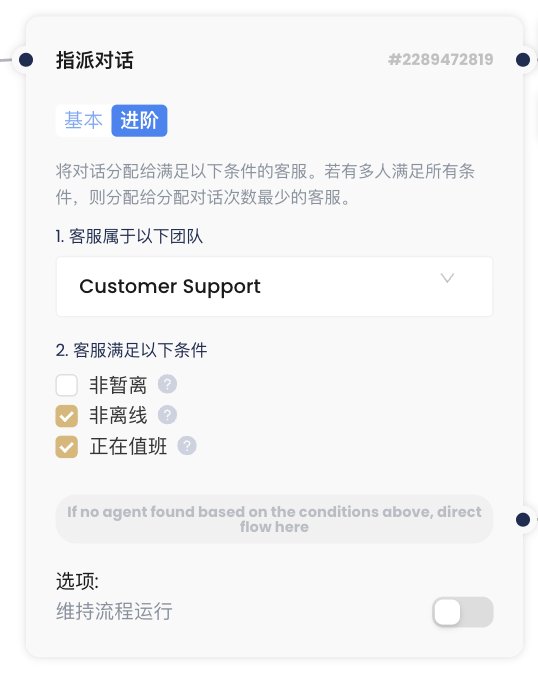
* 在 **进阶对话指派流程(Advanced Assign Conversation)** 区块中,您可以设置 **将对话自动分配给正在值班的客服**。
* 您仍可选择将对话分配给非值班客服。
* 在 **进阶对话指派流程(Advanced Assign Conversation)** 区块中,您可以设置 **将对话自动分配给正在值班的客服**。
 ### 步骤 5:自动非值班回复
若对话已分配给非值班客服:
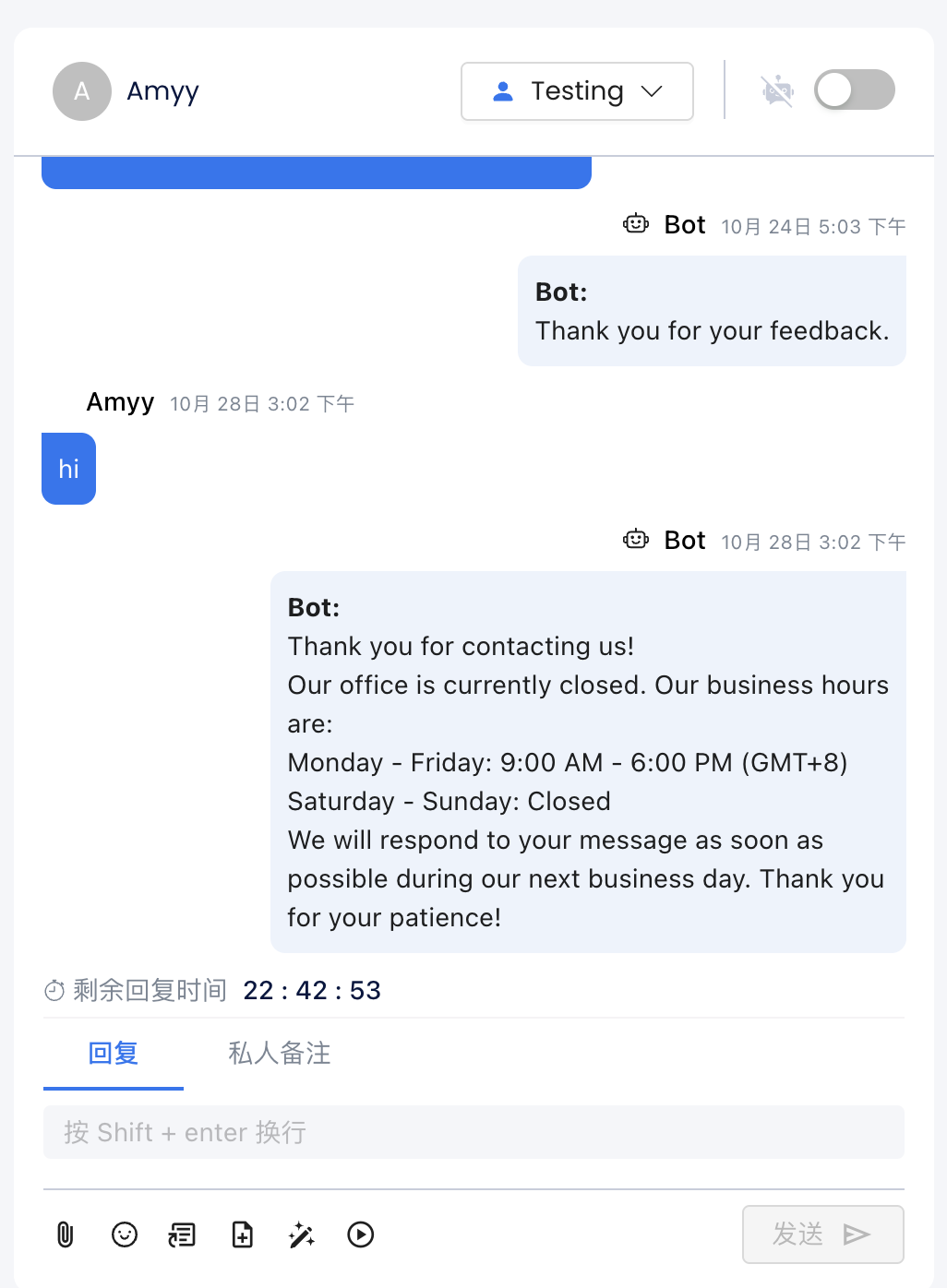
* 当客户发送新消息时,系统会 **自动触发非值班回复**(如已设置)。
### 步骤 5:自动非值班回复
若对话已分配给非值班客服:
* 当客户发送新消息时,系统会 **自动触发非值班回复**(如已设置)。
 确保即使在非工作时间,也能维持良好的客户体验。