> For the complete documentation index, see [llms.txt](https://docs.chatalog.ai/llms.txt). Markdown versions of documentation pages are available by appending `.md` to page URLs; this page is available as [Markdown](https://docs.chatalog.ai/settings/speech-to-text.md).
# Speech-to-Text
{% hint style="info" %}
The Speech-to-Text feature requires an additional payment. For detailed pricing information and to enable this feature, please don't hesitate to contact our sales team.
{% endhint %}
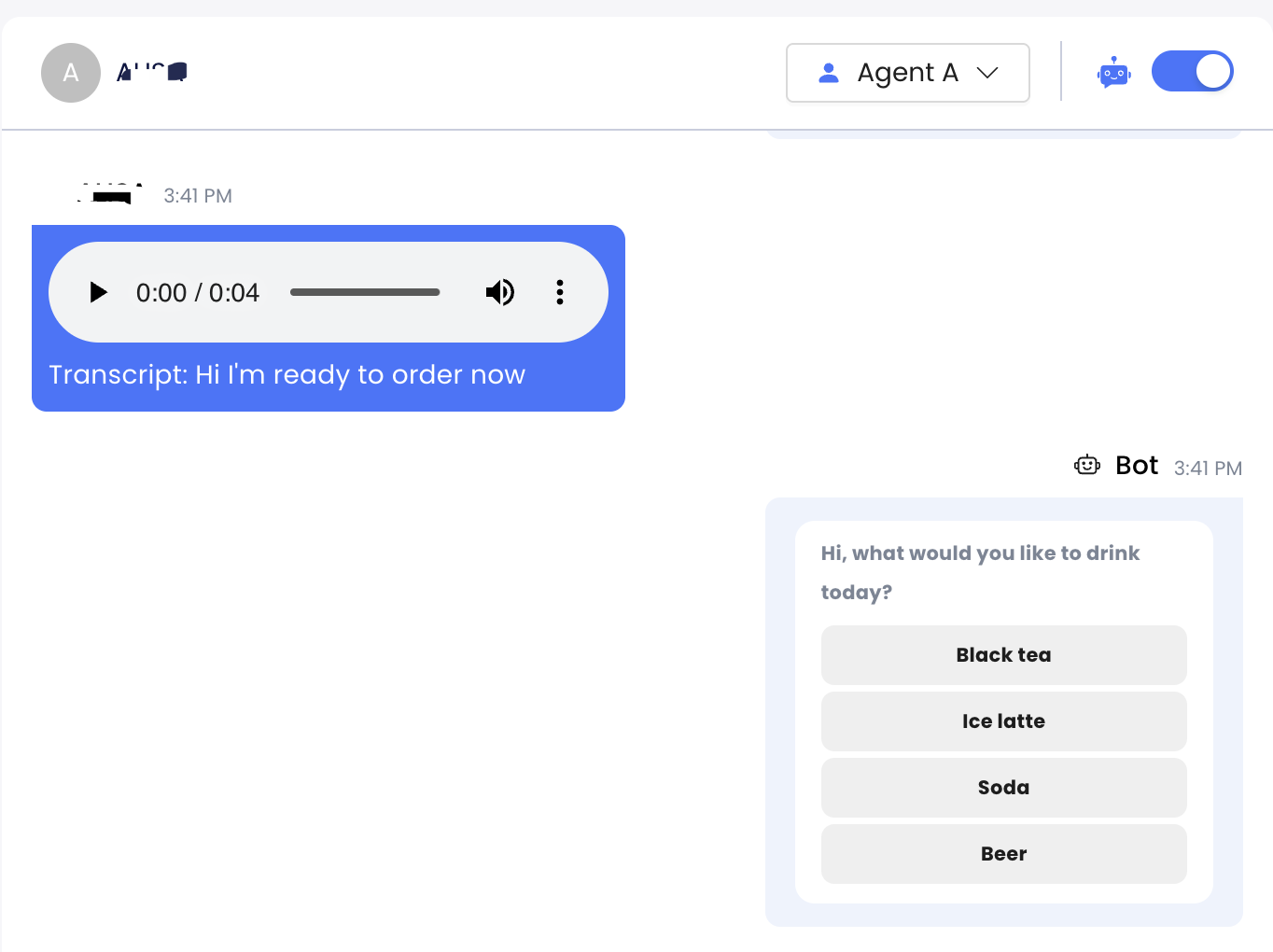
The Speech-to-Text feature automatically converts incoming audio messages in your selected inboxes into text. This makes conversations easier to track and allows triggering of automated flows when specific keywords are detected in the transcribed text.
### Enabling the Feature
Organization owners can enable the Speech-to-Text feature by following these steps:
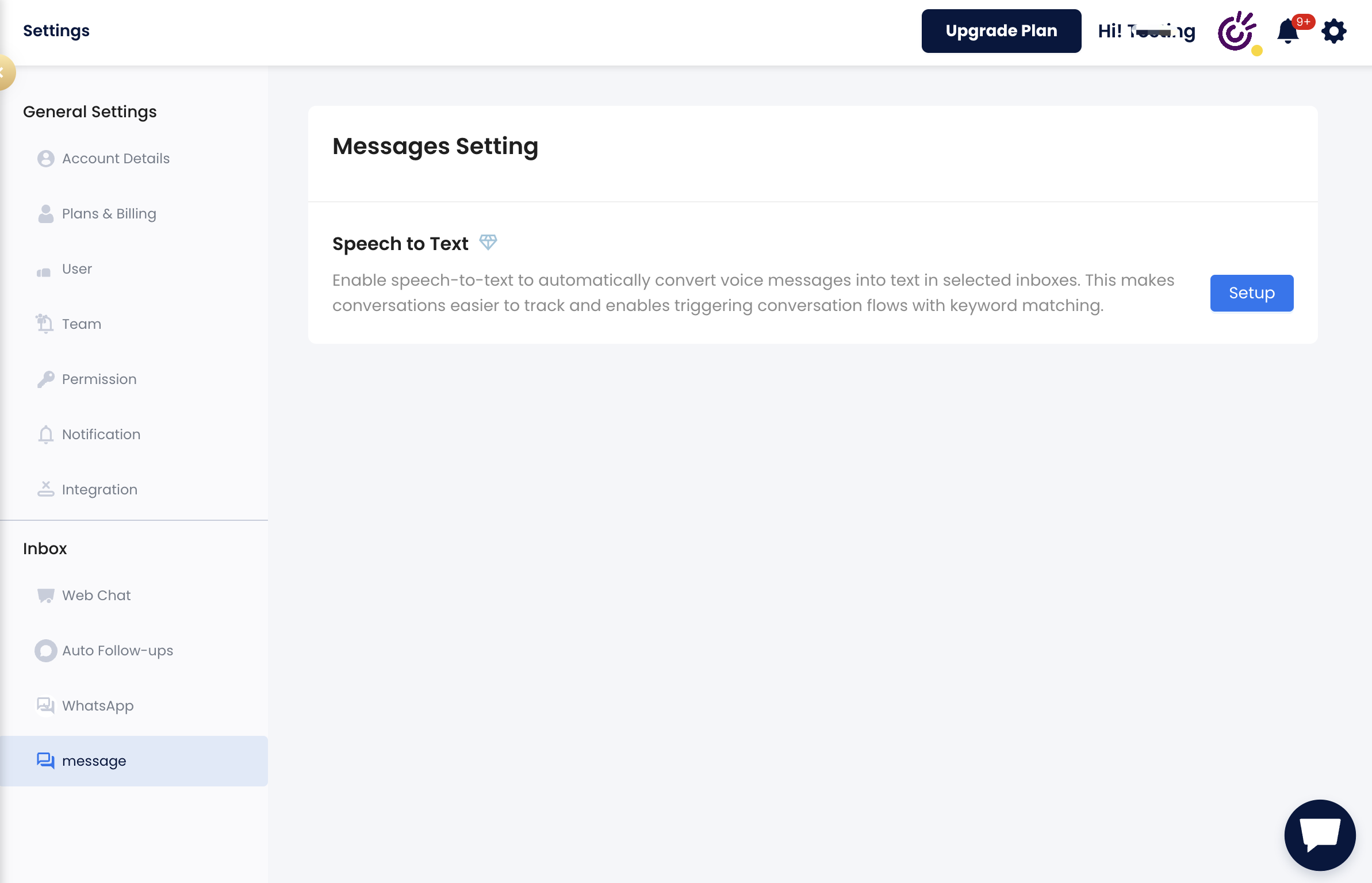
1. Navigate to the **Settings** page in your account.
2. Find the **Message** > **Speech-to-Text** option.
3. Click the Setup button and select the inboxes you want to enable this feature.
### How Does It Work
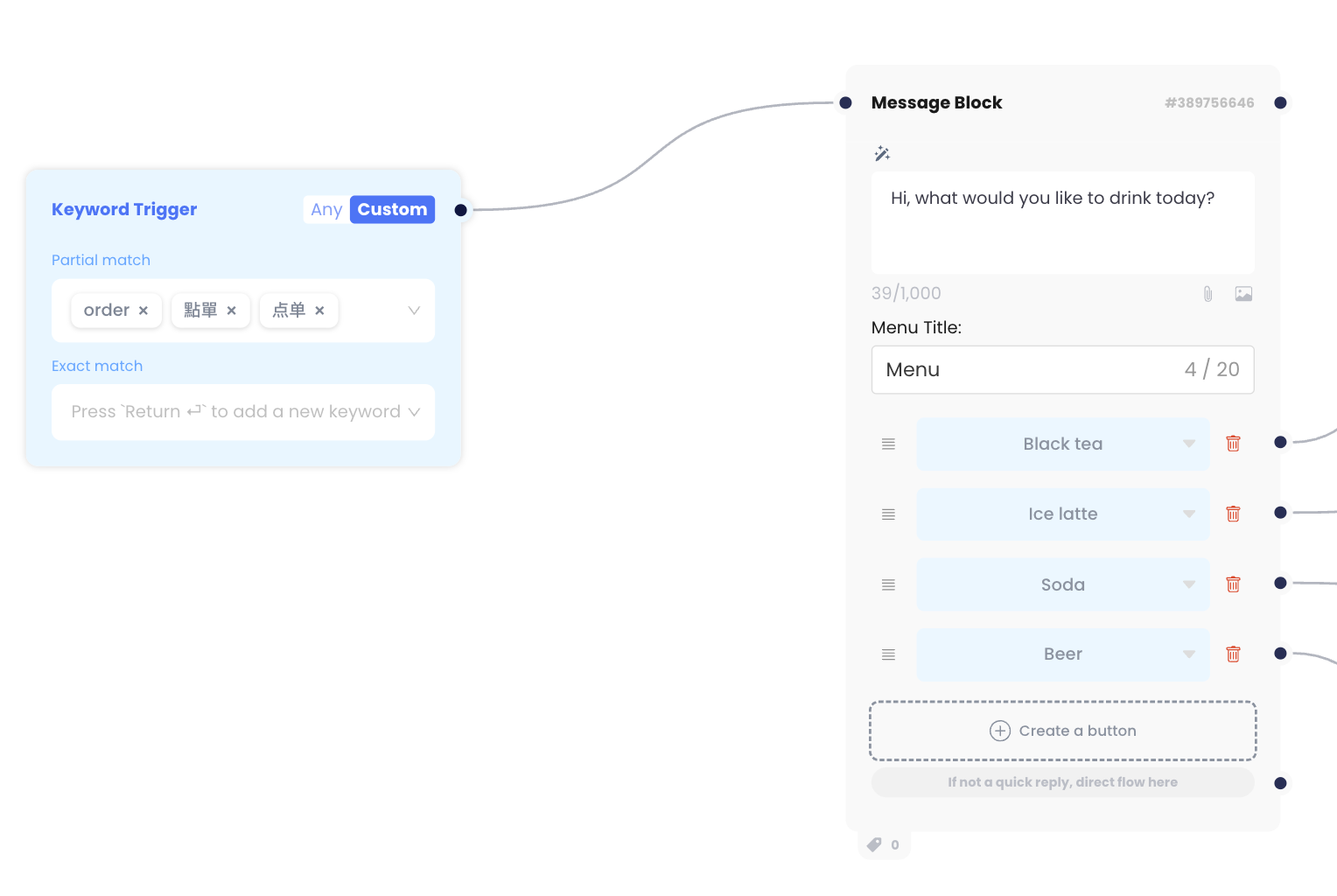
After the owner enables this feature, incoming audio messages are automatically converted to text. If the text content matches keywords in preset flows, the corresponding flow will be triggered.