> For the complete documentation index, see [llms.txt](https://docs.chatalog.ai/llms.txt). Markdown versions of documentation pages are available by appending `.md` to page URLs; this page is available as [Markdown](https://docs.chatalog.ai/settings/notification.md).
# Notification
## Notification
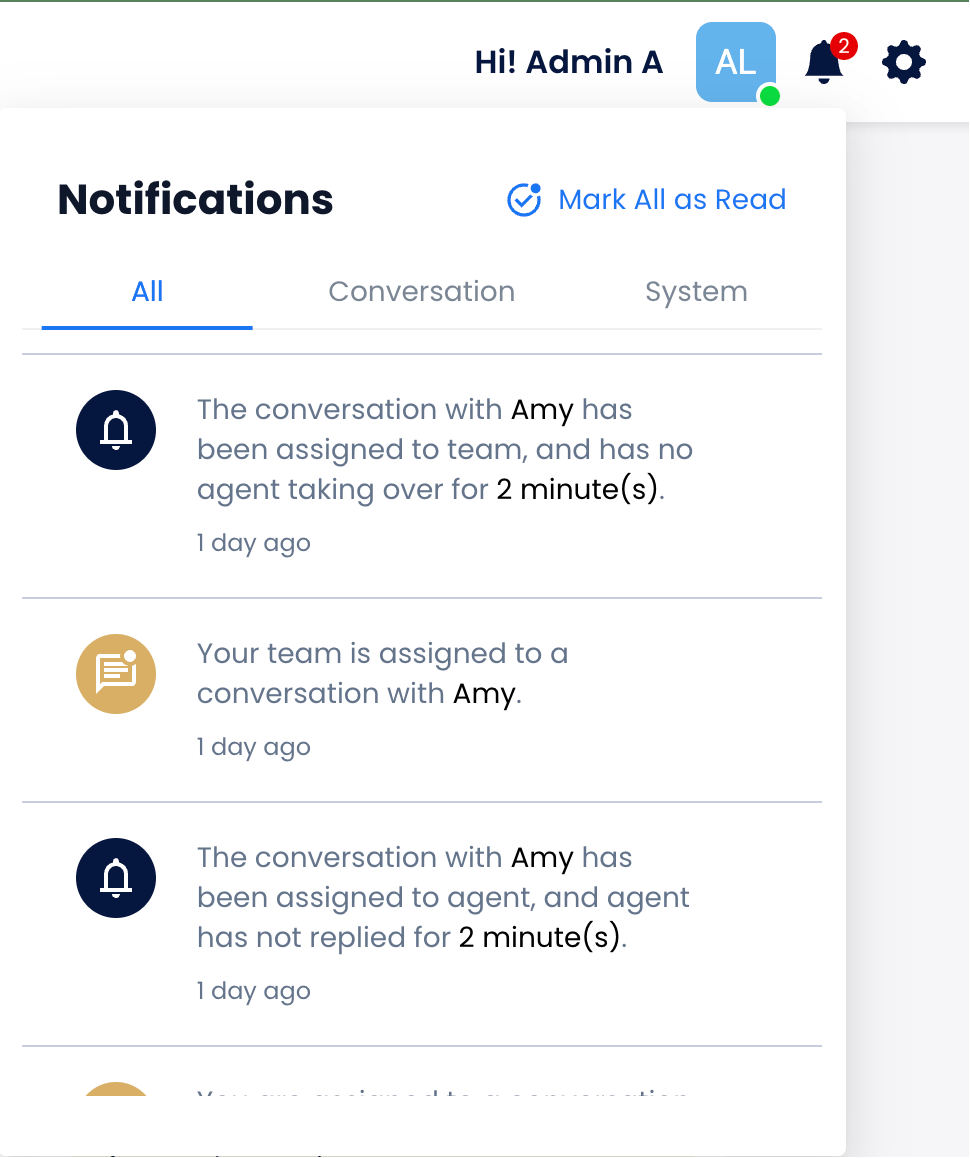
Chatalog offers customizable notification options for owners and admins to ensure timely responses to customer conversations. This feature helps maintain high service quality by alerting team leaders when conversations require attention.
Owners and admins can now enable notifications for the following scenarios if necessary:
* **Unassigned Conversation Alert:** Receive notifications when a conversation assigned to a team has no agent taking over for more than a specified time period.
* **Agent Response Delay Alert:** Receive notifications when a conversation is assigned to an agent but the agent does not reply for more than a specified time period.
## Sound Notification
The Sound Notification feature allows you to customize when you receive audio alerts for new customer messages. This ensures you stay informed about relevant conversations while minimizing unnecessary distractions.
### How to Configure Sound Notifications
#### Step 1: Access the Sound Notification Settings
Navigate to the settings menu and locate the "Notification" section.
#### Step 2: Choose When to Receive Notifications
Under the section **"Notify me when receiving new customer messages from:"**, select one of the following options:
* **All incoming conversations**: Receive sound notifications for every new customer message.
* **Conversations assigned to me**: Receive sound notifications only for messages in conversations directly assigned to you.
* **Conversations assigned to me or my team**: Receive sound notifications for messages in conversations assigned to you or your team.
#### Step 3: Mute Notifications (Optional)
If you want to reduce noise, you can mute sound notifications in specific cases. Under **"Mute the sound notification in the following cases:"**, check the box for:
* **When the conversation is being handled by bot**: No sound notifications will play for conversations managed by a bot.
#### Step 4: Save Your Settings
Click the **Save** button to apply your changes. Your sound notification preferences will take effect immediately.
{% hint style="info" %}
**No sound notifications playing?** Ensure that the sound on your device or browser is enabled and the sound notification settings are correctly configured.
{% endhint %}