> For the complete documentation index, see [llms.txt](https://docs.chatalog.ai/llms.txt). Markdown versions of documentation pages are available by appending `.md` to page URLs; this page is available as [Markdown](https://docs.chatalog.ai/crm-quickstarts/messages/quick-send-bot-flow-saved-replies-whatsapp-flow.md).
# Quick Send - Bot Flow, Saved Replies, WhatsApp Flow
### Quick Send Feature
The Quick Send feature on the Message Page streamlines communication by allowing you to send saved replies, bot flows, or WhatsApp Flows directly within an active conversation window. This feature is designed to enhance efficiency and engagement during real-time interactions with customers.
To use the Quick Send feature, locate the **Quick Send** icon on the Message Page. This icon is available during an active conversation window, ensuring you can send messages only when the conversation is live.
### Bot Flow
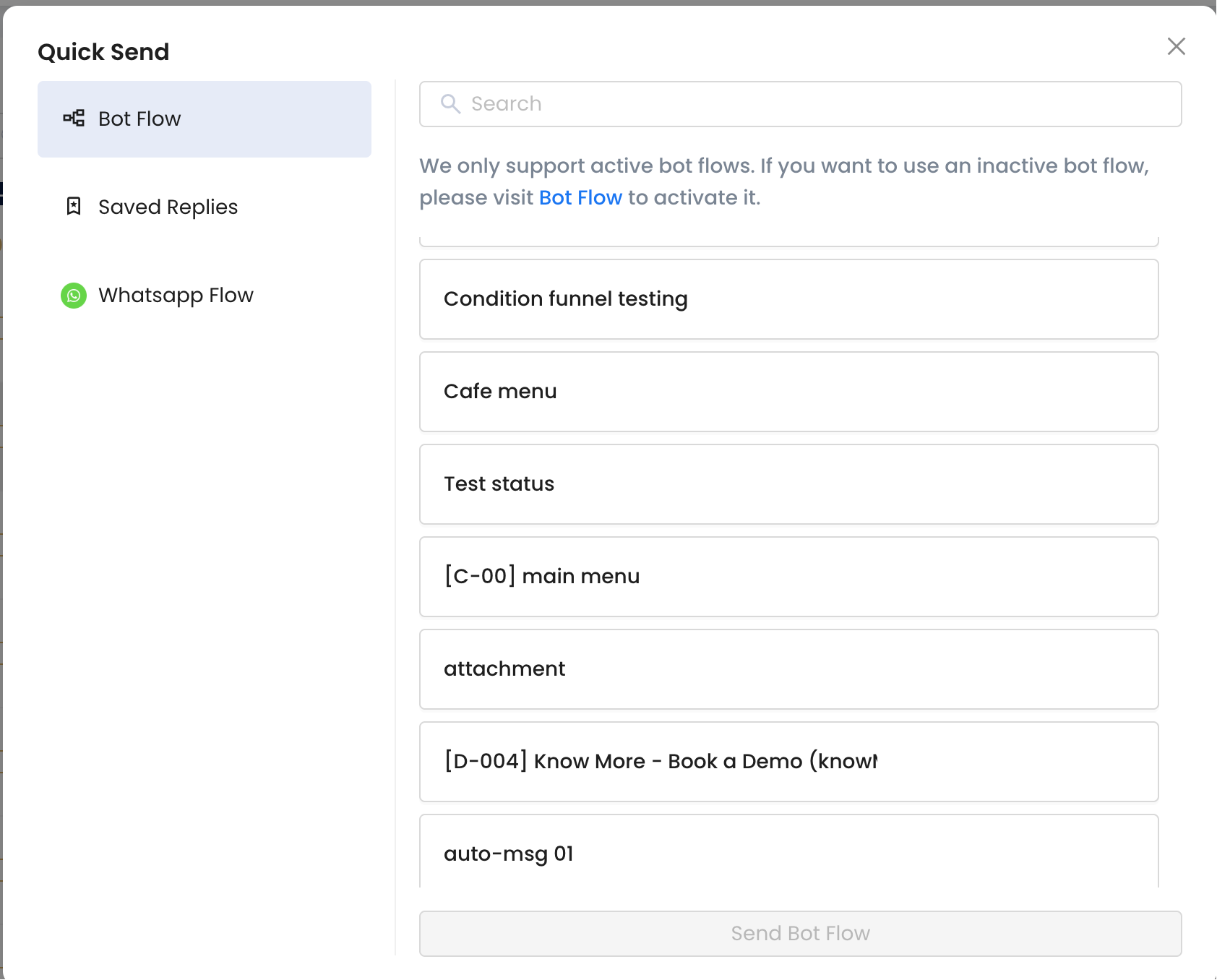
This tab allows you to trigger a pre-configured bot flow to automate responses or guide the conversation based on predefined rules.
You can select a bot flow from the available options to send an automated response. Only active flows could be displayed here. To manage the flow, click the "**Bot Flow**" button can be directed to the flow list page.
### Saved Replies
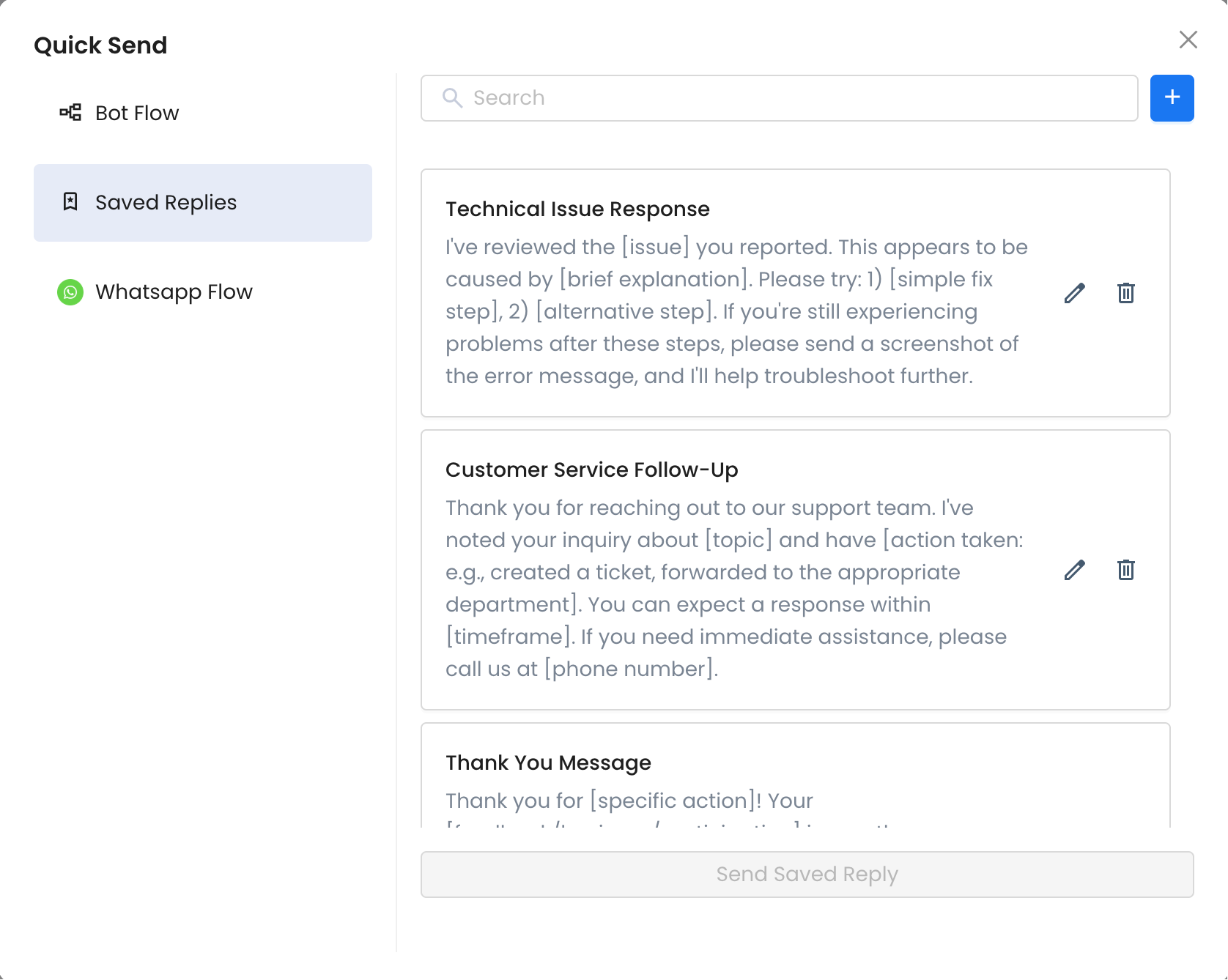
This tab provides access to pre-written responses, enabling you to quickly send standardized messages. Choose a saved reply from the list to send a pre-crafted message.
You can also create a new text/attachment message or edit the existing one.
### WhatsApp Flow
{% hint style="info" %}
Only for the WhatsApp inbox.
{% endhint %}
This tab allows you to send published WhatsApp Flows to engage users interactively. Only WhatsApp Flows that have been published in the WhatsApp Manager can be sent here. Once a WhatsApp Flow is selected, it can be sent directly within the active conversation window at no additional cost.
Select a published WhatsApp Flow from the list. Add a title, content, and a button label for it.
To create, edit, or manage WhatsApp Flows, click the "WhatsApp Manager" button to navigate to the WhatsApp Manager.