> For the complete documentation index, see [llms.txt](https://docs.chatalog.ai/llms.txt). Markdown versions of documentation pages are available by appending `.md` to page URLs; this page is available as [Markdown](https://docs.chatalog.ai/contact-setup/label-management.md).
# Label Management
In Label Management page, you can add labels with different colors to segment your contacts. With these labels tagged to the contacts, handling customers is more easy. You could also only broadcast messages to contact with certain labels.
## **Create a new label**
1. Go to Contact > Labels Management
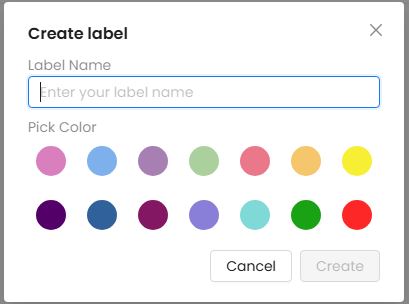
2. Click "Create Label."
3. Enter the desired label name.
4. Select a color for the label.
5. Click the button - "Create".
On the Label Management page, you can also search for a specific label/ edit label name / add or delete a label.
**You can easily update existing contact labels:**
1. Go to Contacts > Labels > Management
2. Locate the label you want to update
3. Click the pencil icon
4. Update the label's name or color as needed.
5. Click "Save" to apply your changes.
## Adding and removing labels by flow
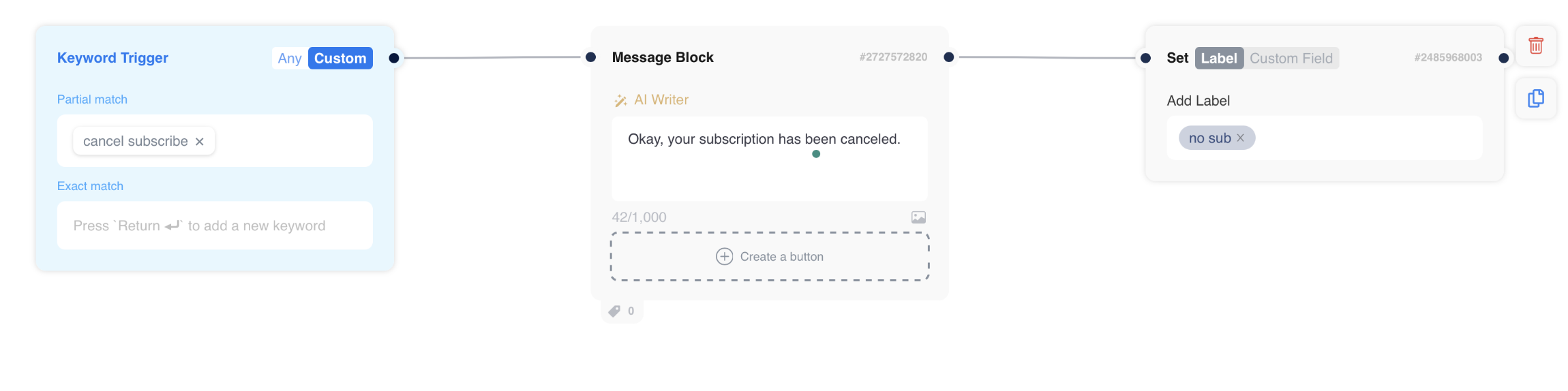
You can add or remove a label by flow in conversation. For adding a label, you can use the block "Set label/custom field" to add a label with the keywords that fit the situation. You can also add a message block to auto-reply your client and add a label at the same time. Example as below.
For removing a label, you can use the block "Remove label" to remove the unnecessary label with the keywords. You can also add a message block to auto-reply your client and remove a label at the same time. Example as below.
## Label in the message page
For the labels added, you can see them in the inbox list once you turn on the label button on the message page.