> For the complete documentation index, see [llms.txt](https://docs.chatalog.ai/llms.txt). Markdown versions of documentation pages are available by appending `.md` to page URLs; this page is available as [Markdown](https://docs.chatalog.ai/chatalog-mobile-app/contact-info-page.md).
# Contact Info Page
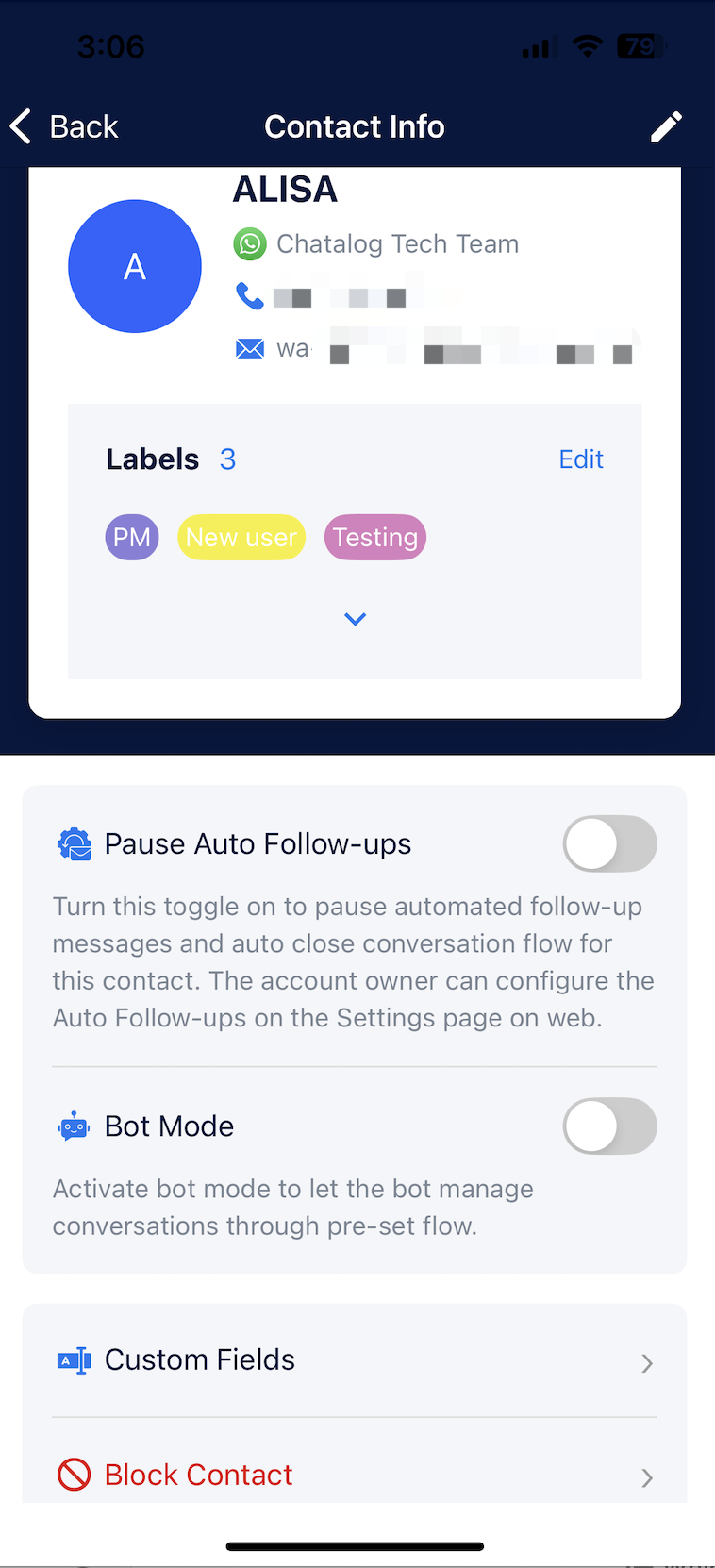
Clicking the contact avatar in a conversation allows you to view and edit contact information and modify other settings for this contact.
### **View and Edit Contact Info**
You can view basic information about this contact. Access more contact details by clicking the top right button to enter the Edit page.
### **Label Management**
Click the Edit button in the Label section to search, add, or remove labels for this contact.
### **Pause Auto Follow-ups**
Enabling this toggle will pause automated follow-up messages and the auto-close conversation flow for this contact.
### **Bot Mode**
You can choose whether to activate bot mode, which allows the bot to manage conversations through pre-set flows.
### **Custom Fields Management**
Click Custom Field to view, add, or remove custom fields for this contact.
### **Block/Unblock Contact**
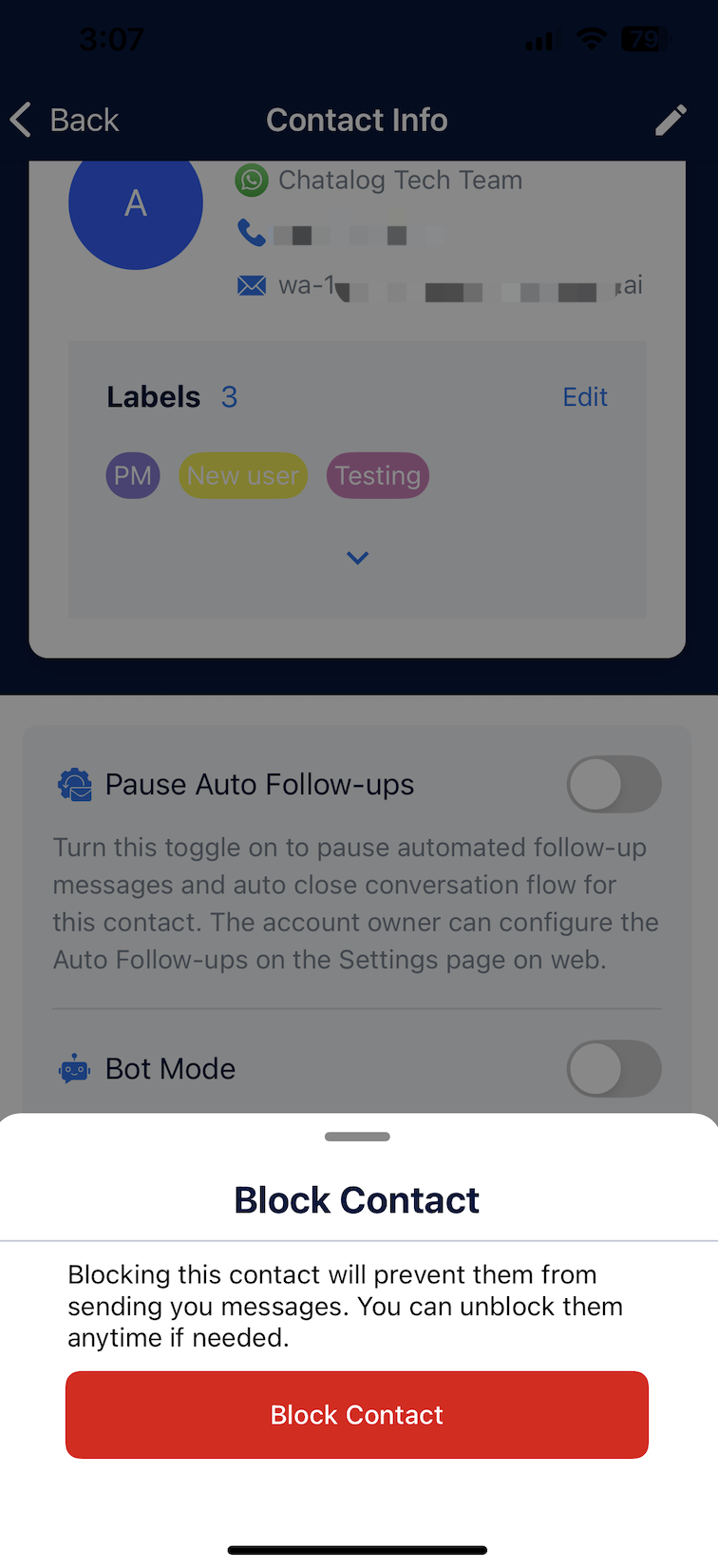
You can block or unblock this contact. Note that blocking a contact will prevent them from sending you messages.